Sound Kits
Producing and mixing music is both an art and a science.
In order to create the sound you want, you need to know how to use the right tools and mix them together properly.
One of the most important tools in your arsenal is the ability to manipulate samples.
By learning how to chop samples in FL Studio, you can take your music production game to the next level.
Chop samples allow you to break down and manipulate individual sounds, allowing you to craft your own unique sound.
When combined with other effects and instruments, you can create powerful, dynamic sounds that can help you stand out among the crowd.
In this blog post, we will be exploring the ins and outs of chopping samples in FL Studio.
We will teach you how to set up the software and how to use it to chop and manipulate samples.
By the end of the post, you will be well on your way to creating your own unique sound.
Set up a sampler instrument
The first step to chopping samples in FL Studio is to set up a sampler instrument.
To do this, open the Channel Rack by clicking the ‘Channels’ tab in the top left corner.
Under the ‘Tools’ menu, select ‘Sampler’ and then drag the Sampler icon into the desired Channel.
You can also right-click on the Sampler icon in the Channel Rack to open the Sampler Settings menu.
Here you can customize your Sampler’s sound by adjusting its frequency, resolution, and amplitude.
Upload the sample to the sampler
After you have chosen the sample you want to use, the next step is to upload it to your sampler.
You can do this by dragging and dropping the sample directly onto the sampler window or by clicking the “Add Sample” button to select the sample from your hard drive.
Once the sample is uploaded, you will be able to manipulate it with the various tools in the sampler window, such as pitch shifting, time stretching, and reversing.
Select the portion of the sample to chop
Once you have your sample loaded into FL Studio, you can begin chopping it up.
To do this, you’ll need to select the portion of the sample that you want to chop.
You can do this by either clicking and dragging your mouse across the sample or by entering specific start and end points.
When you’ve selected the portion of the sample you want to chop, you can right click and choose “Cut” or press Ctrl+X to cut the sample.
Use the “Slice Tool” to chop the sample
Once you have a sample loaded in FL Studio, you can chop it up into smaller pieces using the “Slice Tool.” To do this, simply select the sample in the Playlist window, then click the Slice Tool.
You can then draw a line across the sample to select the region you want to chop.
When you do this, FL Studio will automatically create individual slices of the sample and place them in the Playlist window.
You can then move, copy, or delete each slice as you wish.
Save the samples to the step sequencer
When you’ve selected your desired sample, it’s time to chop it up and save it to the step sequencer.
Here’s how to do it: First, select the part of the sample you want to work with.
To do this, hold down the Shift key while you select the region you’d like to work with.
Next, drag the sample to the step sequencer.
Finally, adjust the length of the sample to fit the rest of your track.
Now you’re ready to chop up your sample and create something amazing!
Adjust the length of the slices
Once you’ve decided on where to chop your sample, it’s time to adjust the length of the slices.
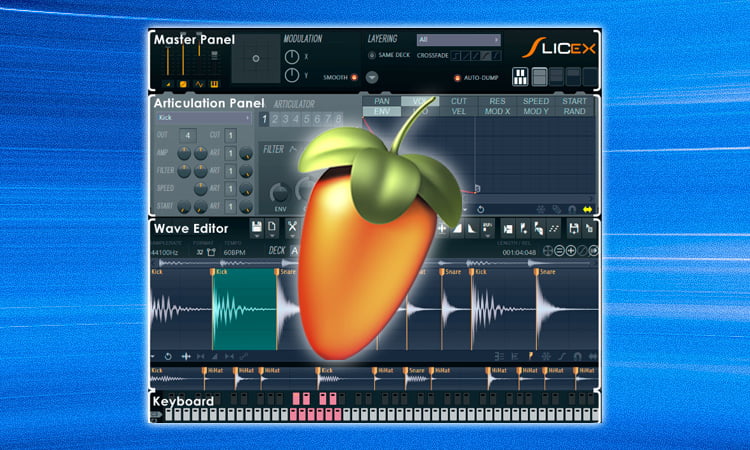
You can do this by dragging the two orange markers to the left and right of the slice.
This will control the length of the slice, which can be important if you want to loop a sample or if you want to make sure the sample will fit into your project.
You can also adjust the size of the slice by holding the Alt/Option key and dragging the edges of the slice in or out.
This will ensure that you get the perfect length of sample.
Layer the samples by adding effects
After you have your sample ready to go, it’s time to start layering it.
To do this, right-click on the sample in the “Mixer” and select “Layer”.
This will create a new track that you can use to layer your sample.
You can layer different effects, such as reverb, delay, and distortion, to give the sample a more unique and interesting sound.
Experiment with different effects and automation to find the perfect combination for your sample.
Once you’ve got the desired results, you can save the layered track as a separate sample!
Export the final samples to a file
Once your sample is chopped and ready to be used, you will have to export the final samples to a file.
To do this, click on the “File” menu in the top-right corner of the FL Studio window and select “Export”.
From here, you can select the format of the file you wish to export (WAV, MP3, etc).
Select the folder you want to save your sample to, and once you hit the “Export” button, your sample will be saved.
Conclusion
In conclusion, chopping samples in FL Studio is an incredibly useful tool for producing music.
It can help you create unique and interesting sounds that can really transform your music.
With the right techniques and a bit of practice, you’ll be able to quickly and easily create your own custom samples and make your music stand out from the rest.