 Sound Kits
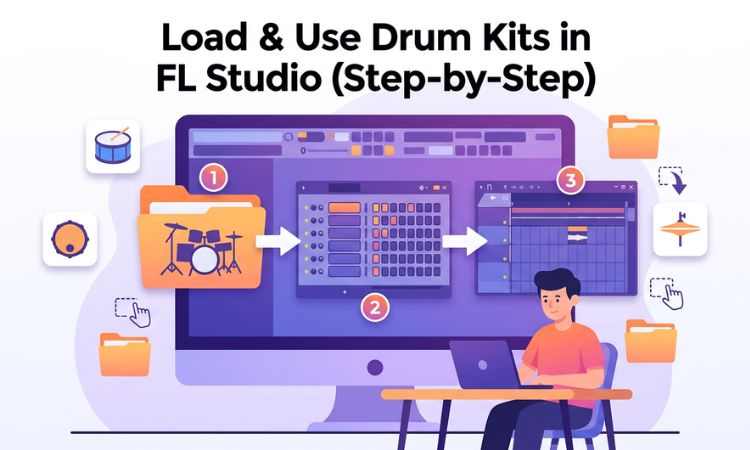
You just downloaded a drum kit. Now what?
If you’re new to FL Studio, figuring out how to actually get those samples into your project and start using them can be surprisingly confusing. The DAW has multiple ways to load sounds — Channel Rack, FPC, DirectWave, Slicex, the browser panel — and nobody tells you which one to use or when.
This guide walks through every method, step by step. By the end, you’ll know exactly how to load any drum kit or sample pack into FL Studio and start making beats immediately.
Before You Start: Unzip Your Files
Most drum kits download as a .zip or .rar file. Before FL Studio can use the sounds, you need to extract (unzip) the files.
On Windows, right-click the downloaded file and select “Extract All.” On Mac, double-click the .zip file and it will extract automatically. You should end up with a folder containing WAV files organized into subfolders — kicks, snares, hi-hats, and so on.
Move this folder somewhere permanent on your computer. Don’t leave it in your Downloads folder — create a dedicated location like D:\Sample Library\Drum Kits\ or wherever makes sense for your setup. If you want a deeper dive on organization, check out our guide on how to organize your sample pack library.
Method 1: The Channel Rack (Fastest Way)
The Channel Rack is FL Studio’s core sample loading area and the quickest way to get drum sounds into your project. This is where most producers load their one-shot samples.
Step 1: Open the Channel Rack (press F6 or click the grid icon in the toolbar).
Step 2: You’ll see some default channels already loaded. To add a new sample, right-click in the empty area at the bottom of the Channel Rack and select “Insert > Sampler.”
Step 3: A new Sampler channel appears. Click on the channel name to open the Sampler plugin window.
Step 4: In the Sampler window, you’ll see a waveform display area. Click the folder icon (or drag a WAV file directly from Windows Explorer / Finder onto the waveform area) to load your sample.
Step 5: Navigate to your drum kit folder, find the kick, snare, or hi-hat you want, and select it.
Step 6: The sample is now loaded. You can rename the channel by right-clicking the channel name and selecting “Rename.” Name it something useful like “Kick” or “Snare” so you don’t lose track.
Repeat for each sound you want to use — typically you’ll want at least a kick, snare, hi-hat, and maybe a clap, percussion hit, or 808.
Pro tip: Instead of the Insert > Sampler method, you can also drag WAV files directly from FL Studio’s browser panel (the panel on the left side) into the Channel Rack. This is even faster once you’ve set up your browser folders (more on that below).
Method 2: The Browser Panel (Best for Browsing)
FL Studio’s built-in browser panel is the most efficient way to audition and load samples, especially when you’re exploring a new drum kit and want to hear sounds before committing.
Step 1: Open the browser panel by pressing Alt+F8 or clicking the folder icon in the toolbar on the left.
Step 2: You need to add your sample folder to the browser. Go to Options > File Settings > Browser Extra Search Folders. Click one of the empty slots and navigate to your main Sample Library folder. Click OK.
Step 3: Back in the browser panel, your sample folders now appear. Navigate through the folder tree to find your drum kit.
Step 4: Click on any WAV file in the browser to preview it. FL Studio will play the sample so you can hear it before loading. This is hugely useful when you’re auditioning 30 kicks trying to find the right one.
Step 5: When you find a sound you like, drag it from the browser into the Channel Rack. Done.
Setting up the browser is a one-time task — once your sample folders are added, they stay there across every project. This is one of the best workflow improvements you can make in FL Studio, and it takes about 30 seconds.
Method 3: FPC (FL Studio’s Drum Pad Controller)
FPC is FL Studio’s built-in drum pad plugin — similar to a virtual MPC. It’s great when you want to load multiple drum sounds into a single plugin and trigger them from a MIDI controller or your keyboard.
Step 1: Open the Channel Rack and click the + button at the bottom. Search for “FPC” and add it.
Step 2: FPC opens with a grid of 16 pads (two banks of 16, for 32 total). Each pad can hold a different sample.
Step 3: Click on a pad to select it. In the panel on the right, click the folder icon to load a sample onto that pad.
Step 4: Navigate to your drum kit folder and select a sample. The pad now triggers that sound.
Step 5: Repeat for each pad — assign kicks to one row, snares to another, hi-hats to a third, and so on.
Step 6: You can now program patterns using the pads, your MIDI keyboard, or by drawing notes in the Piano Roll. Each pad corresponds to a specific MIDI note.
When to use FPC: FPC is ideal when you want all your drum sounds in one plugin instance. It’s also great for finger drumming if you have a pad controller. The trade-off is that it’s slightly less flexible than individual Channel Rack samplers for per-sound processing — though you can still route each pad to a separate mixer track.
Method 4: Slicex (For Chopping Loops)
If your drum kit includes drum loops (full audio loops rather than individual one-shots), Slicex is the tool for breaking them apart.
Step 1: Add Slicex to the Channel Rack (click + and search for “Slicex”).
Step 2: Drag your drum loop into the Slicex waveform area.
Step 3: Slicex automatically detects the transients (the hit points) in the loop and places slice markers at each drum hit.
Step 4: You can adjust the slice points manually if needed. Each slice gets assigned to a key on your keyboard.
Step 5: Now you can rearrange the loop by programming the slices in the Piano Roll — creating entirely new patterns from the original loop.
When to use Slicex: When you want to chop and rearrange drum loops, or when you want to isolate individual hits from a loop to use as one-shots. It’s especially useful for lo-fi hip hop producers who like to chop breaks.
Method 5: DirectWave (For Multi-Sampled Kits)
DirectWave is FL Studio’s advanced sampler. It’s less commonly used for basic drum loading, but it’s powerful when you want to pitch-shift and map samples across the keyboard — useful for 808s and tuned percussion.
Step 1: Add DirectWave to the Channel Rack.
Step 2: In DirectWave, drag your sample onto the keyboard display. You can set the root note and the key range.
Step 3: The sample is now mapped across the keyboard. Playing different keys will pitch the sample up and down — perfect for creating melodic 808 bass lines.
When to use DirectWave: Primarily for 808s and tuned elements where you need to play melodies with a single sample. For standard drum programming with kicks, snares, and hi-hats, the Channel Rack sampler or FPC are simpler choices.
Setting Up Your Mixer for Drum Sounds
Once your drums are loaded, you’ll want to route each sound to its own mixer track for individual processing (EQ, compression, effects).
Step 1: Click on a drum channel in the Channel Rack.
Step 2: In the channel settings, find the “Track” selector (the green number). Click and drag it to assign the channel to a specific mixer track. For example, assign your kick to Mixer Track 1, snare to Track 2, hi-hats to Track 3.
Step 3: In the Mixer (press F9), you’ll now see each drum sound on its own track. You can add effects, adjust volume, pan, and EQ each element independently.
Pro tip: Create a “Drums” bus by routing all your individual drum mixer tracks to a single bus track. This lets you apply overall processing (like compression or saturation) to the entire drum group while still having individual control over each sound.
Tips for Working With Drum Kits in FL Studio
Preview before you load. Always use the browser panel to audition samples. Clicking through 40 kicks in the browser takes 2 minutes. Loading each one into a channel to listen takes 20 minutes.
Use color coding. Right-click any Channel Rack channel and select “Change color.” Color all your drums the same shade (like red for kicks, blue for snares) so you can identify them instantly in the Piano Roll and Playlist.
Save your starter template. Once you’ve loaded a drum kit you love and routed everything to the mixer, save it as a template (File > Save As Template). Every new project starts with your drum sounds ready to go.
Don’t load too many sounds at once. Start with the essentials: one kick, one snare, one clap, one hi-hat (closed and open), and one 808. You can always swap sounds later. Loading 50 samples before you’ve written a single pattern is a creativity killer.
Recommended Drum Kits for FL Studio
All drum kits in WAV format work with FL Studio — there’s no special format required. That said, kits designed with clear organization and logical naming make the loading process much smoother.
Every VILARCORP drum kit comes organized with clearly labeled folders and descriptive file names, so you can find exactly what you need in FL Studio’s browser without guessing:
- SUPREME Trap Drum Kit — Essential trap sounds with punchy kicks and crisp hi-hats
- COWBELL Phonk Drum Kit — 2,000+ phonk samples including pitched cowbells
- MAJESTIC Lo-Fi Hip Hop Drum Kit — Warm, textured drums for lo-fi beats
- BLING BLING Trap Drum Kit — Hard-hitting trap essentials
Or get the entire collection — 63+ packs — with PREMIUM.













Comments 1